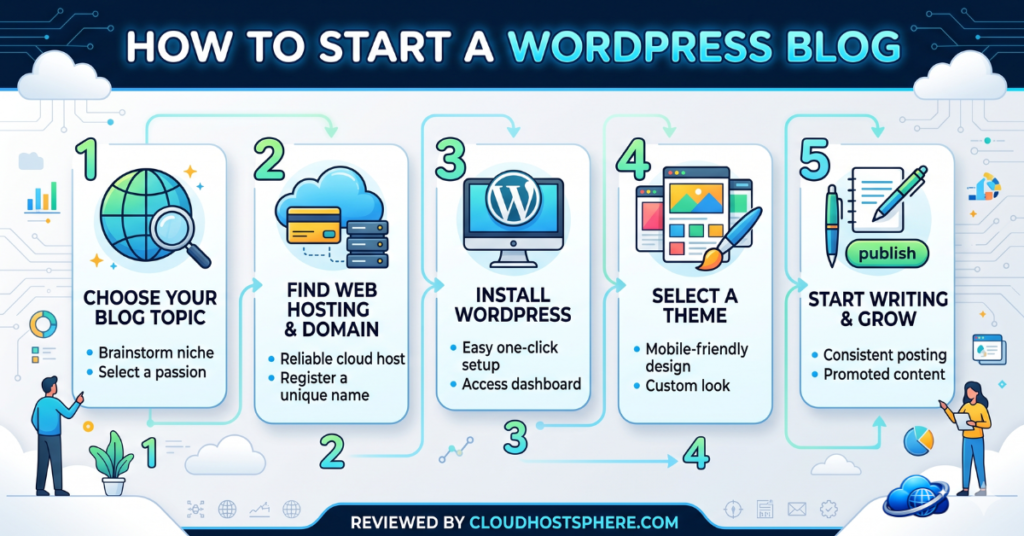
Starting a WordPress blog in 2026 is genuinely easier than it’s ever been — but there’s still a right way to do it, and a way that leads to headaches later. This guide walks you through every step, from picking a domain name to publishing your first post, without the jargon. By the end, you’ll have a real, live WordPress blog ready to grow. Let’s go.
📋 What You’ll Need
- ✅ A domain name (~$10–$15/year — or free with most hosts)
- ✅ Web hosting (~$2–$5/month to start)
- ✅ 30–60 minutes of your time
- ✅ A topic you want to write about
Step 1: Choose Your Niche and Blog Name
Before touching any technical settings, get clear on what your blog is about. The best niches are specific enough to attract a defined audience but broad enough to give you plenty to write about. A few questions to guide you:
- What do you genuinely know or care about? Blogs written from real knowledge and passion last longer and perform better.
- Is there an audience for it? Search Google for topics you’d cover — if others are writing about it, there’s a readership.
- Can you monetise it eventually? Think about whether there are products, courses, or affiliate programmes in your niche.
Your blog name (and domain) should be memorable, relevant to your niche, and ideally short. Avoid hyphens and numbers — they’re harder to share verbally.
Step 2: Pick Your Hosting (This Matters More Than Most Guides Admit)
Your hosting provider is the foundation your blog sits on. Get it right and everything runs smoothly. Get it wrong and you spend years fighting slow load times, downtime, and bad support. The good news: great hosting costs as little as $2–$3/month.
For a new blog, look for:
- Fast servers — LiteSpeed + NVMe is the gold standard for WordPress speed
- Free SSL — required for security (and Google ranking)
- Free domain — saves you $10–$15 in year one
- Easy WordPress installation — one-click install is standard
- Good support — you’ll have questions; make sure someone’s there to answer them
Our Recommended Hosts for New Bloggers
| Host | From | Best For |
|---|---|---|
| Hostinger | ~$1.99/mo | Lowest price, LiteSpeed speed, clean interface |
| ChemiCloud | ~$2.99/mo | Best support + speed, 45-day guarantee |
| Bluehost | ~$2.95/mo | Official WordPress.org recommended host |
| HostPapa | ~$3.95/mo | Non-technical owners, free onboarding session |
For most new bloggers, Hostinger or ChemiCloud are the best starting points — fast, affordable, and backed by solid support.
Step 3: Register Your Domain
Most hosts offer a free domain for the first year when you sign up for hosting — take advantage of this. When registering:
- Aim for a .com if possible — most trusted and remembered
- Keep it short and memorable — under 15 characters ideally
- Avoid hyphens and numbers
- Make sure it’s easy to spell when heard aloud
Step 4: Install WordPress (One Click)
Once you’ve signed up for hosting, installing WordPress is a one-click process in your control panel. In cPanel or hPanel, look for:
- Softaculous Apps Installer (cPanel) → find WordPress → click Install
- Auto Installer (Hostinger’s hPanel) → WordPress → Install
Fill in your site name, admin username, and a strong password. Hit install — WordPress will be ready in about a minute. Your admin login will be at yourdomain.com/wp-admin.
Step 5: Choose a Theme
Your theme controls how your blog looks. Go to Appearance → Themes → Add New in your WordPress dashboard and search for these trusted, fast options:
- Astra (free) — lightweight, fast, highly customisable, our top recommendation
- GeneratePress (free) — minimal and extremely fast
- Kadence (free) — modern, great block editor integration
Avoid heavy, “multipurpose” themes with hundreds of features — they tend to be slow and harder to customise meaningfully.
Step 6: Install the Essential Plugins (And Only Those)
Plugins add functionality. Start lean — you can always add more. These are the only ones a new blog truly needs:
| Plugin | Purpose | Cost |
|---|---|---|
| LiteSpeed Cache / WP Rocket | Speed & caching | Free / $59/yr |
| SureRank / Rank Math / Yoast SEO | SEO optimisation | Free |
| UpdraftPlus | Backups | Free |
| Akismet | Spam protection | Free for personal |
| ShortPixel / Imagify | Image optimisation | Free tier |
Step 7: Configure the Basics
- Set your permalink structure: Settings → Permalinks → select “Post name” (e.g. yourdomain.com/my-first-post/)
- Set your timezone: Settings → General → Timezone
- Add an SSL certificate: Most hosts do this automatically — confirm your site loads as https://
- Create essential pages: About, Contact, Privacy Policy (required for GDPR and most affiliate programmes)
Step 8: Write Your First Posts
Go to Posts → Add New. A few content tips for new bloggers:
- Write for your reader first — answer real questions people are searching for
- Aim for 1,000–2,000 words on your early posts — longer content tends to rank better
- Use headings (H2, H3) — makes content scannable and helps SEO
- Add images — compress them first (under 200KB each)
- Internal link between your posts as you build up content
Step 9: Set Up Google Analytics and Search Console
Add Google Analytics so you can see who’s visiting and what they’re reading. Then submit your site to Google Search Console so Google can discover and index your pages. Both are free and take about 10 minutes to set up. Check our guide for step-by-step instructions on setting up your WordPress site.
Step 10: Be Consistent
This is the one that separates successful blogs from abandoned ones. You don’t need to post daily — but you do need to post consistently. Even one well-written post per week, published reliably, compounds into meaningful traffic over time. The blogs that win are the ones that keep going when the early results are slow. They always are at first.
🚀 Ready to Start Your Blog?
The fastest, most affordable way to get your blog live today — with LiteSpeed speed, free domain, and support that’ll help you every step of the way.
Start With Hostinger → Start With ChemiCloud →Affiliate links — if you sign up through one, we may earn a commission at no extra cost to you. Our disclosure.
Helpful next reads: how to choose WordPress hosting, best cheap WordPress hosting, and how to speed up WordPress.
Last updated: June 8, 2026.