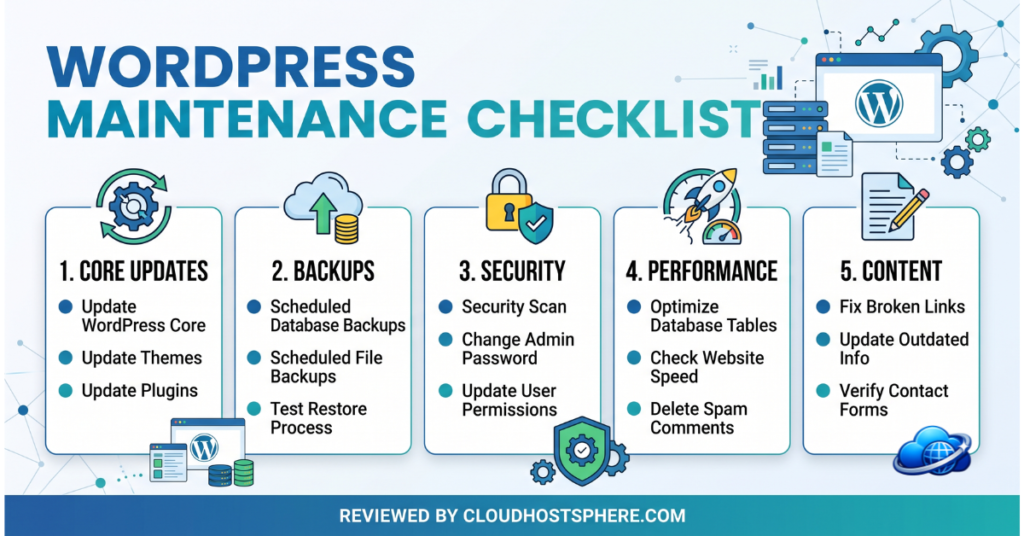
WordPress doesn’t maintain itself. Left unattended, even a well-built site accumulates outdated plugins, bloated databases, broken links, and security gaps — all of which silently degrade performance, rankings, and reliability. We’ve put together this maintenance checklist based on what actually matters: the tasks that prevent real problems, ranked by how often they need doing.
Why WordPress Maintenance Matters
A neglected WordPress site doesn’t fail dramatically — it degrades gradually. Plugin updates get missed; the database fills with post revisions and spam comments; image files accumulate without optimisation; SSL certificates expire quietly. By the time the symptoms are obvious (slow load times, a hacked site, a broken checkout), significant damage has been done. Regular maintenance catches these issues when they’re cheap to fix.
Weekly Maintenance Tasks
1. Update Plugins, Themes, and WordPress Core
Check Dashboard → Updates at least once a week. Outdated plugins are the leading cause of WordPress security breaches — vulnerabilities are publicly disclosed, and attackers actively scan for sites running the unpatched version. Before updating, run updates on your staging environment first if you’re on a managed host that provides one. For minor updates with no reported conflicts, updating directly on live is generally safe.
2. Check Site Uptime and Speed
If you don’t have uptime monitoring running, set it up now — tools like UptimeRobot (free) or Jetpack’s downtime monitor will alert you by email within minutes of your site going down. Pair this with a weekly load time check using GTmetrix or PageSpeed Insights. A sudden speed drop often signals a bloated plugin, a caching failure, or a database issue caught early.
3. Moderate Comments and Clear Spam
Approve legitimate comments, mark spam, and empty the Akismet spam queue. Thousands of spam comments in your database increase query times and slow the WordPress admin panel. If comments aren’t a core part of your site, consider disabling them entirely on older posts (Settings → Discussion → Automatically close comments).
Monthly Maintenance Tasks
4. Optimise Your Database
WordPress accumulates database bloat over time: post revisions (WordPress saves a new revision every time you save a draft), auto-draft entries, trashed posts and comments, transient options, and orphaned metadata. Cleaning these up reduces database size and speeds up queries.
Use WP-Optimize or Advanced Database Cleaner to safely remove database overhead. Most plugins let you preview what will be deleted before committing. For sites with heavy content (1,000+ posts), limiting post revisions in wp-config.php prevents the bloat from accumulating in the first place:
define('WP_POST_REVISIONS', 3); // Keep only the last 3 revisions per post5. Test Your Backups
Confirm that your automated backups are actually running — check your backup plugin’s log or your managed host’s backup dashboard. Then test that a restore works: restore a backup to your staging environment and verify the site loads correctly. A backup you’ve never tested is a backup you can’t trust.
6. Check for Broken Links
Broken internal and external links harm user experience and send negative signals to Google. Use Broken Link Checker (plugin) or an online tool like Ahrefs’ broken link checker. Fix broken internal links immediately. For broken external links, either update to the correct URL or remove the link.
7. Review Google Search Console
Monthly, check GSC for: crawl errors (pages returning 404 or 500), security issues (malware or hacking flags), manual actions, and Core Web Vitals failures. GSC surfaces issues Google has already found — if they’re in GSC, they’re affecting your rankings. Address them promptly.
8. Optimise and Compress Images
Images are typically the largest assets on any WordPress page. Run a monthly audit of recently uploaded images and compress any that weren’t optimised at upload. Plugins like ShortPixel or Imagify can bulk-compress your media library. Consider converting large JPEGs to WebP format — typically 25–35% smaller with equal quality.
9. Audit User Accounts
Go to Users → All Users and review every account. Remove accounts for former team members, freelancers, or clients who no longer need access. Dormant admin accounts with weak passwords are a common attack vector. Confirm every active admin account has a strong, unique password and 2FA enabled.
10. Test Key Site Functions
Manually test the critical paths on your site once a month: contact form submissions, WooCommerce checkout (place a test order), email deliverability, search functionality, and any membership or login flows. Plugins break these quietly — automated uptime monitoring only tells you the site is loading, not that the checkout works.
⚠️ Tip: Set a recurring monthly calendar reminder — “WordPress maintenance” — and block 30 minutes for it. The tasks above rarely take longer than that once you have a routine.
Quarterly Maintenance Tasks
11. Review and Prune Installed Plugins
Every installed plugin — even deactivated ones — is a potential security and performance liability. Quarterly, go through your plugin list and ask: Is this plugin actively maintained (updated in the last 6 months)? Do I still use it? Is it doing something another plugin already covers? Delete anything you can’t answer “yes” to. Fewer plugins means a faster, more secure site.
12. Verify SSL Certificate Validity
Let’s Encrypt SSL certificates expire every 90 days and must auto-renew. Most hosts handle this automatically, but the auto-renewal can fail silently. Quarterly, verify your SSL is valid and shows a renewal date in the future. You can check at https://www.ssllabs.com/ssltest/ — it shows expiry date, cipher strength, and any configuration issues. A lapsed SSL triggers browser security warnings that drive visitors away instantly.
WordPress Maintenance Checklist — Printable Reference
Weekly
- ☐ Update plugins, themes, and WordPress core (test on staging first)
- ☐ Check uptime monitoring — no missed downtime alerts
- ☐ Check site load time (GTmetrix / PageSpeed Insights)
- ☐ Moderate comments, clear spam queue
Monthly
- ☐ Optimise database (remove revisions, spam, transients)
- ☐ Test backup restore on staging
- ☐ Scan for and fix broken links
- ☐ Review Google Search Console — errors, security issues, Core Web Vitals
- ☐ Compress and optimise new image uploads
- ☐ Audit user accounts — remove stale access
- ☐ Manually test contact forms, checkout, and login flows
Quarterly
- ☐ Audit and prune installed plugins
- ☐ Verify SSL certificate — check expiry and auto-renewal
- ☐ Review hosting plan — is your current plan meeting your traffic and storage needs?
Tools That Automate Most of This
Much of the maintenance above can be partially or fully automated:
- WP Rocket — automates caching, database optimisation scheduling, and image lazy loading. Set it once and it handles weekly database cleanup automatically.
- Jetpack — includes automated backups, downtime monitoring, malware scanning, and brute force protection.
- ManageWP / MainWP — manages updates, backups, uptime monitoring, and security scans across multiple WordPress sites from one dashboard. Essential for agencies.
- Managed WordPress hosting — hosts like Cloudways handle server-level security, automated backups, and WordPress core updates automatically, significantly reducing the manual maintenance burden.
Try Cloudways Managed Hosting →
Frequently Asked Questions
How long does WordPress maintenance take?
Weekly maintenance typically takes 5–10 minutes once you have a routine. Monthly maintenance — including database optimisation, backup testing, and GSC review — takes 20–30 minutes. Quarterly tasks add another 15–20 minutes. In total, you’re looking at roughly 1–2 hours per month for a well-maintained site.
Can I automate WordPress maintenance?
Partially. Plugin updates, database cleanup, and backups can be automated via plugins (WP Rocket, Jetpack, UpdraftPlus) or your managed host. However, some tasks — testing site functions, reviewing GSC, auditing user accounts, and verifying SSL — require a human check. Don’t fully set-and-forget; automated tools can also fail silently.
What happens if I don’t maintain my WordPress site?
Over 6–12 months of neglect, a typical WordPress site will have: outdated plugins with known security vulnerabilities, a bloated database slowing page load times, an expired or misconfigured SSL, broken links affecting SEO, and at least one unused admin account with a weak password. Any one of these is a problem; together they significantly increase the risk of a breach or a performance failure at the worst possible moment.
Should I hire someone for WordPress maintenance?
For a personal blog or simple site, no — the checklist above is manageable in-house with 30 minutes a month. For a business site, WooCommerce store, or any site where downtime has a direct cost, a managed WordPress host or a WordPress maintenance service (many agencies offer monthly retainers) is worth the cost. The risk of a DIY mistake on a revenue-generating site often exceeds the cost of professional maintenance.
Conclusion
WordPress maintenance isn’t glamorous, but it’s what separates a site that runs reliably for years from one that gets hacked, slows to a crawl, or breaks at the worst possible moment. Use the checklist above, set calendar reminders for the weekly and monthly tasks, and consider a managed host or automation tools to handle the heaviest lifting. Thirty minutes a month of proactive maintenance prevents hours of reactive recovery.
🚀 Let Your Host Handle the Hard Part
Cloudways manages server security, automated backups, and WordPress updates for you — cutting your maintenance load significantly so you can focus on growing your site.
Start with Cloudways →If you sign up through our link, we may earn a commission at no extra cost to you. Read our full affiliate disclosure.